For anyone with access to a record. Available sections and editing controls depend on your role and the organisation's settings.
Steps
- Find the person using search or your allocated list.
- Check the record header before adding or changing anything.
- Start with Overview to orient yourself.
- Choose the tab that matches the information you need.
- Read the date, status and author before relying on an entry.
- Return to the same record after saving and check that the change appears.
If it goes wrong
- A hidden or unavailable section does not mean the information does not exist. Ask an authorised colleague about access.
- If a tab fails to load, retry that tab before creating a replacement document or record.
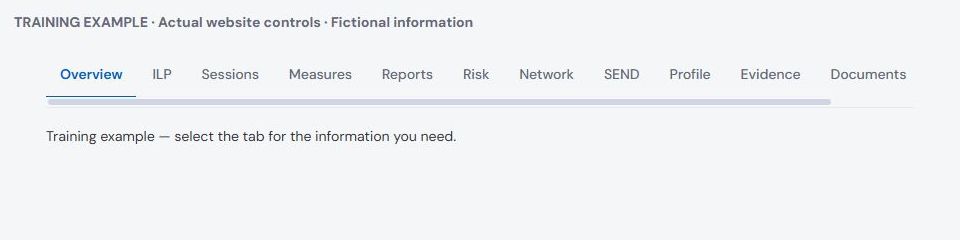
Read the header first
A record collects many kinds of information about one person. The reference and identity information help you confirm that you opened the correct record. Check any visible safety notices and current placement information before delivery.
Do not treat every entry as current. A historic assessment, an ended placement and a current plan can all belong to the same record. Dates and statuses explain which one applies now.
Overview and learning goals
Overview is the starting point for a broad picture. Use it to orient yourself, then open the relevant section for detail. A summary is not a substitute for reading a full concern or assessment when your role requires it.
The ILP section holds learning-plan work and goals. Read the active goals before planning or writing up. Linking an activity to a goal should explain what was practised and what changed, rather than simply repeat the goal's title.
Delivery history and outcomes
The sessions section brings planned work and recorded delivery together. Check the date, outcome and sign-off status before deciding that a visit is missing. An unfinished draft and a signed write-up describe different stages.
Attendance is not the same as a complete write-up. A visit can be marked delivered while the account of what happened still needs finishing.
Measures and reports
Measures holds recorded instruments and scores. Compare like with like: the same instrument, informant and scoring approach. A change in score should be interpreted alongside the circumstances and other evidence.
Reports contains periodic reports and their workflow state. Drafting, signing and sending are different steps. A signed report is not automatically proof that its intended recipient has received it.
Risk, network and additional needs
- Risk is where you look for the person's risk-assessment information. Read the current assessment and its controls before an activity.
- Network concerns the people and organisations involved around the person. Check current roles and reliable contact details.
- SEND concerns special educational needs and disabilities. Use recorded information, not an inferred diagnosis.
Profile, evidence and documents
- Profile holds personal information and related details. Check whether you are viewing current information or an earlier value before changing it.
- Evidence is for material demonstrating activity or progress. A useful caption explains what the file shows and its context.
- Documents is for supporting records and files. Select the appropriate type and check the contents before uploading.
The public help library deliberately does not include screenshots of an individual's record. This keeps confidential information out of public guides. The instructions refer to the current tab definitions in the application.
Journey and history
Journey helps you follow what has happened over time. Use event dates and links to return to the original records. The order something was entered can differ from when it happened.
Access and corrections
Only change information within your role. If an entry has been signed, confirmed or otherwise locked, use the correction or return process offered. Do not place a contradictory replacement in another tab just to avoid that process.
If you cannot see information needed for immediate safety, contact the responsible lead directly. Do not assume an empty or restricted panel means that no concern exists.