Quick steps
- Open the correct young person's record and locate the consent section.
- Check existing entries and any received-form prompt before adding another answer.
- Choose Record consent and select the correct consent type.
- Set Given or Not given from the actual answer.
- Check who answered, the scope, Given on, and any expiry date.
- Save the entry, then reload and check the current record and available proof.
If it goes wrong
Read the message before trying again. Reopen the correct record and check what was saved. Ask your manager if access or responsibility is unclear.
What you need before recording an answer
Have the original answer or approved evidence available. Confirm whose record it belongs to, who answered, what was agreed and when.
An empty entry is not a yes. Do not assume that another consent type covers this activity. If authority or scope is unclear, ask the responsible colleague before relying on it.
Choose the correct type
The list comes from your organisation’s configuration. Select the type matching the activity and evidence. A similarly named type may have a different purpose.
If a type is missing or unavailable, contact your admin. Do not select a different type simply to get past the form.
Record the answer and scope
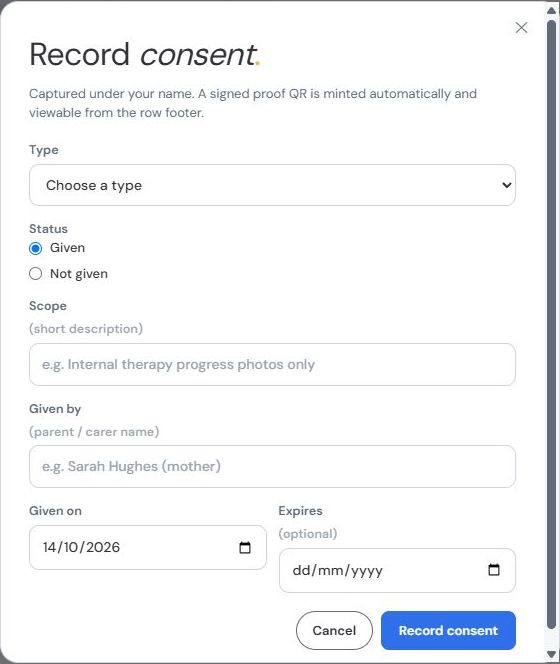
Given records an affirmative answer. Not given records that permission was not given. Check the selection carefully, including when a received form pre-fills it.
Describe the scope in enough detail to distinguish limited permission from a general agreement. Record who gave the answer and the date shown on the evidence.
Given on should describe the actual answer date. It is not necessarily the day you entered it. Set an expiry date where the permission has one.
Received forms still need checking
A completed form can open a pre-filled consent entry. That helps avoid retyping, but it does not automatically save the consent record.
Compare the proposed type, status, signer and date with the source. Correct any mismatch before saving. If the source is ambiguous, resolve it first.
Photographs and other sensitive uses
Read the warning when recording photography as Not given. This refusal affects visibility of photo evidence elsewhere on the record.
Always check current scope before taking, uploading or sharing an image. A visible upload control does not establish permission to use it.
Permission for one purpose does not automatically authorise another audience, channel or use. Follow the organisation’s process for checking and documenting the intended use.
Check the saved entry and proof
After saving, reload the record and inspect the current entry. Where available, open its signed proof from the row footer.
Check that type, status, person giving consent and dates match what you entered. Keep the supporting evidence in the approved record location.
Uploading a consent form as a document and recording the consent decision are separate tasks. Check that both are completed when your process requires them.
Changed answers and uncertain saves
When permission changes, follow the consent section’s available actions and your organisation’s procedure. Do not overwrite evidence of the earlier answer to hide the change.
If saving cannot be confirmed, the form may stop further submissions. Reload and check the current consent record before making a second request.
If you cannot establish the current permission, pause the activity that depends on it and ask your manager. A technical error does not turn an unknown answer into consent.