For managers and admins. Search for an existing record first. This page creates real data.
Steps
- Open the new-record page from the people menu.
- Complete Identity using verified information.
- Add known Demographics without guessing.
- Complete Placement and check the effective date.
- Use Caseload to allocate the responsible staff when that feature is enabled.
- Complete Health & schooling, Contacts and Consents from the information you actually hold.
- Check the whole form and use its create button. Confirm the resulting record is the intended one.
If it goes wrong
- A missing person in a delivery picker may need a caseload assignment, not another record.
- If creation appears to fail after saving, search again before retrying. Ask an administrator if the outcome is unclear.
Before opening the form
Have the referral or verified source available through your organisation's approved storage. Check whether an existing record already covers this person. A different spelling, preferred name or previous placement does not necessarily mean a different person.
Only enter information you are authorised to record. Keep unknown answers unknown rather than choosing a convenient default. Required fields must be completed, but optional fields should not be filled with invented information.
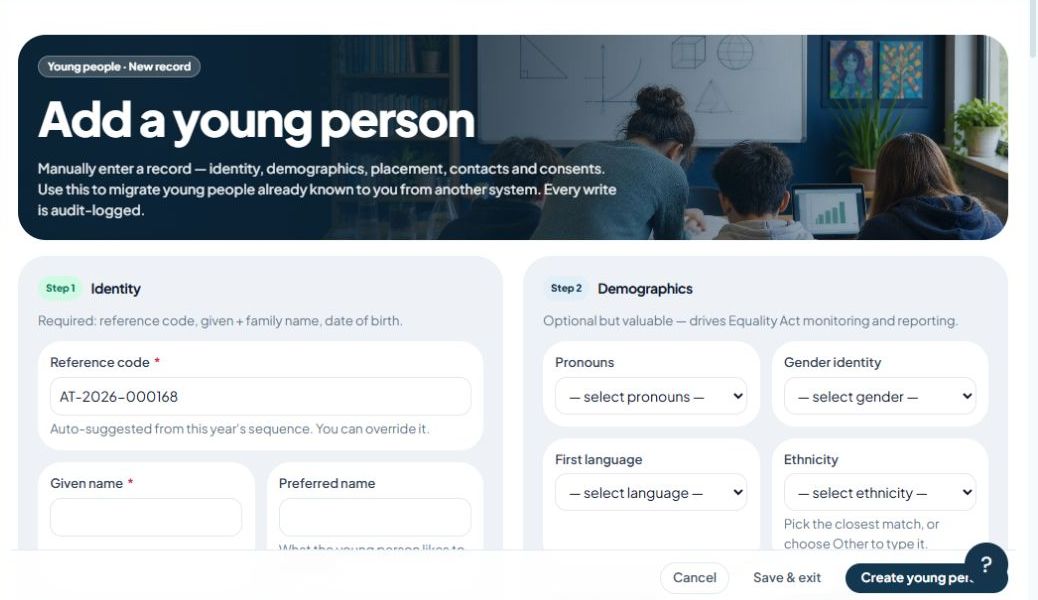
Identity: distinguish a legal name from a preferred name
- The reference code identifies the record. The page suggests the next value; follow your organisation's numbering practice before overriding it.
- Given and family names should match verified identity information.
- The preferred-name field records what the person likes to be called, without replacing their other identity fields.
- Check the date of birth carefully, including the year. A valid calendar date can still belong to the wrong person.
Demographics: record what is known
The form offers choices for pronouns, gender, language, ethnicity and home situation. Where offered, the other option lets you describe a value outside the list. Do not infer these answers from a name, appearance or assumption.
Use the postcode and care-authority fields for their stated purposes. The form says to leave the care-authority answer blank where it does not apply. Follow local procedures for checking sensitive information with the appropriate source.
Placement and effective dates
Choose the appropriate status and area. The effective date establishes when this placement applies. Backdating should reflect an actual earlier start, not make an unfinished setup look complete.
A commissioner can be assigned later where the form offers that choice. Contracts are filtered by the selections they depend on. An empty contract list may mean the organisation needs configuration rather than a free-text workaround.
Allocation determines who can find the record
Choose the responsible mentor where the organisation uses allocated staff. The form explains that this creates the caseload link from the effective date. Leaving it empty can leave the record out of delivery pickers.
Assign the DSL according to your organisation's arrangements. Do not choose any available name just to remove an empty field. Roles and allocation are separate: giving someone a role does not automatically assign every person to them.
Health, schooling and custom fields
Record allergies and medical information accurately because they can be shown as safety information during delivery. Use the school-year and group fields for the correct placement. Custom fields are your organisation's additional questions; their labels and options can differ.
Contacts and consent
Add parents, carers and professionals only where their relationship and contact details are known. Check the spelling and address before using a contact for later communications.
Record consent that has actually been obtained, with its correct scope and source. Missing paperwork is not a positive answer. You can complete missing information later through the person's record and the organisation's follow-up process.
After creation
- Check the record header, reference and date of birth.
- Confirm the intended staff can find it through their normal access.
- Complete any remaining contact, consent or placement tasks.
- If a detail is wrong, correct the existing record through the authorised route. Do not create a replacement to hide the error.