Quick steps
- Open the correct report and check the person, reporting period, deadline and your role.
- Read the existing evidence and complete the sections assigned to you.
- If contributing a separate account, use Save my summary and check its confirmation.
- Check outstanding contributions, goal progress and the person’s voice.
- Read the completion message: before the deadline, marking complete can retain an editable draft.
- Submit for checking when the report’s workflow requires it, then resolve any returned changes.
- An authorised sender checks the recipients and uses Send to referrer or Send to parents separately after the report is ready.
If it goes wrong
Read the message and check the existing record before retrying. Ask your manager if access, ownership or the correct next action is unclear.
A periodic report answers a different question
An individual write-up records one occasion. A half-term report draws together evidence across the reporting period and explains progress, needs and next steps.
Start with the correct person and period. A good account from another term does not make this report complete.
Check who started the report, which contributions are required and who is responsible for checking it. Different people can have different editing rights.
Gather evidence before writing
Read the relevant activity records and goal information. Describe patterns with examples, including support needed and changes over time.
Distinguish direct observation, the person’s own words and information from other people. Avoid copying an earlier report without checking every statement.
Missing evidence should be made clear. Do not fill a gap with an invented activity or an assumption about progress.
Save your own contribution
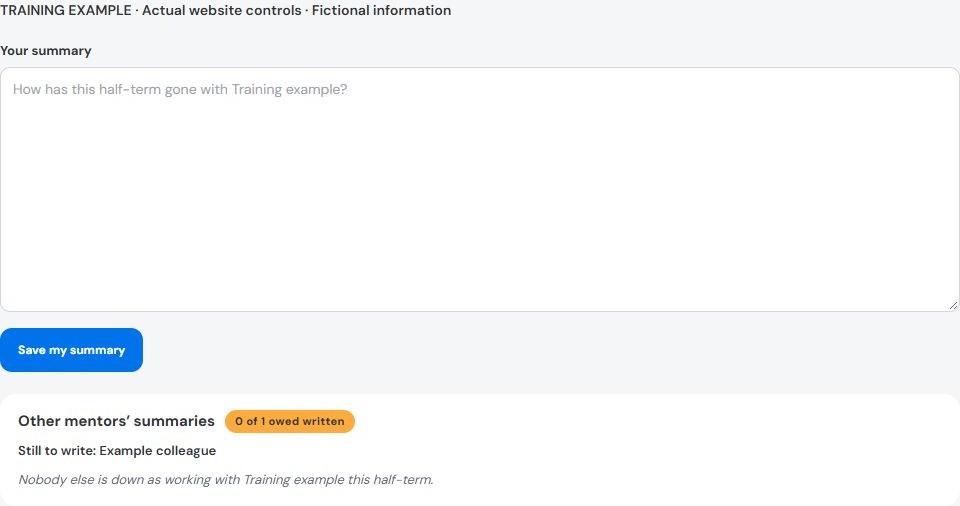
Where you are contributing separately, write in your own summary field. Use Save my summary and look for confirmation.
The report starter’s main summary and another colleague’s contribution are separate pieces of work. Do not assume saving one completes the other.
Completed contributions from others can be available to read. That does not grant permission to edit their words. Ask the author about anything unclear.
Check the sections and outstanding contributions
Work through the sections offered by the report. Check the person’s voice, goal progress, contextual information and the overall account.
The required-contribution count concerns the colleagues marked as required. An optional contribution does not replace somebody else’s outstanding required work.
An authorised manager can decide who needs to contribute. If the list seems wrong, ask for it to be checked rather than writing on someone’s behalf.
Understand the deadline and completion action
Read the wording beside the completion control. Before the deadline, marking the report complete can leave it editable until it goes for checking on that date.
In the sending-for-checking mode, submission moves it into the sign-off workflow. A draft save, a completion marker and submission are different stages.
Check the displayed state after acting. If sections or contributions remain outstanding, follow the message before assuming the report is ready.
Checking and corrections
The authorised checker reads the report and makes the sign-off decision. If changes are requested, address them in the existing report.
Recheck the affected sections together. A changed goal judgement may also need a change to the summary or next steps.
Do not create a second report simply because the first was returned. Preserve the report’s history and use the offered correction workflow.
Approval does not send the report
Signing off a report does not automatically email it to recipients. Sending is a separate step for an authorised person.
The sending page checks one recipient group at a time. The referrer step comes before the parent or carer step in the current workflow.
Check every proposed address against the correct record and the organisation’s sharing procedure. Additional contacts are choices, not automatic recipients.
Read the report preview and check the cover-page choice. Only send when the intended report and recipients have been confirmed.
Afterwards, read the sending result and recorded history. If a result is uncertain, check that history before retrying to avoid duplicate messages.
When you are stuck
- Check the reporting period and deadline before assuming a task is overdue.
- Ask about missing access or contribution responsibility instead of using another person’s account.
- Keep work in the existing report when correcting or resuming it.
- Report technical errors without copying the confidential report into an ordinary support message.