Quick steps
- Open the correct record and find its ILP. Check which version is current.
- Check whether the plan is maintained here or still in its workbook.
- If permitted, use Edit plan to update the supported questions.
- Use + Add goal to describe a specific target, agreed support and the next check date.
- Save, read any warnings and reopen the plan to see what was kept.
- When a formal update is due, work through the versioning flow and decide what happens to each open goal.
- Check the resulting current version and use its relevant goals in future planning.
If it goes wrong
Read the message and check the existing record before retrying. Ask your manager if access, ownership or the correct next action is unclear.
A learning plan is different from an activity plan
The ILP describes longer-term needs, targets and support. Planning a session describes what you intend to do on a particular occasion.
A goal connects those two levels. It gives the activity a purpose and helps later accounts explain progress, support and next steps.
Start by reading the current version and the young person's own views. A goal should mean something to the person, not merely fill a required box.
Check where the plan is maintained
Some plans are still maintained in a workbook. Others are edited in Daymello. Read the note explaining where this plan is kept.
Only an authorised colleague should change that arrangement. Moving the label to this system does not import missing workbook changes or rewrite the goals.
Bring the information up to date first and agree which copy is authoritative. Otherwise colleagues may continue editing different versions without realising.
Create the first plan when none exists
If the record has no current ILP, authorised staff can use the action to open its first plan. Check identity before creating it.
Capture the person’s voice and check the proposed date for the next formal check. The form allows the voice to be added later.
You can choose to add a first goal while opening the plan. Complete its need, target and agreed strategies if using that option.
The first version becomes current immediately. Reopen the record to confirm the plan and any first goal are present.
If the message says the plan opened but the goal failed, add the goal from the existing plan. Do not open another plan.
Update the current plan
Edit plan opens the template-based questions available for this record. The configured template decides which questions are shown and which can be changed.
Change only the answers you intend to update. The list of questions still to complete is advisory; it does not prevent all incomplete saves.
A successful save is not a statement that every question is answered. Read any notices about answers or goals that could not be saved.
If some changes were saved and others were declined, check the result before retrying. Keep your intended changes together and avoid adding duplicate goals.
Add a useful goal
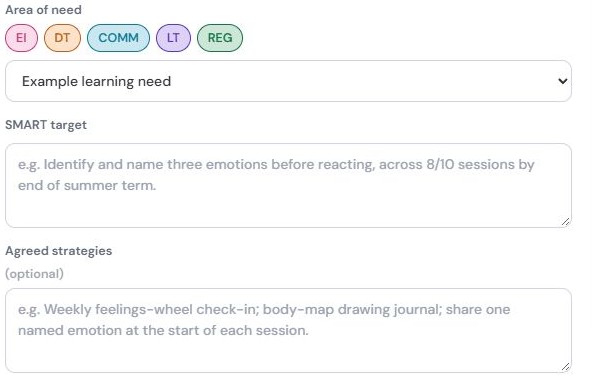
Choose the appropriate need from the offered list. Describe an observable target, the support or strategies agreed, and when it should next be checked.
For example, an invented target could describe following a three-step checklist with one prompt across several opportunities. Decide suitable measures with the responsible team.
The optional SMART breakdown can help clarify what, how much and by when. Do not use arbitrary numbers simply to make a target look precise.
Check the target before pressing Add goal. Reopen the plan and confirm that the new goal appears once with the intended wording.
Record a formal update as a new version
The versioning flow first asks for the person’s voice and the next planned date. It then asks what should happen to each open goal.
Decide whether to carry a goal forward, mark it met or close it incomplete. Base that decision on the evidence and the agreed process.
Read the confirmation carefully before completing the change. A new version is more significant than correcting a spelling mistake in the current plan.
Afterwards, check the current version and its goals. Keep earlier versions as history rather than treating both old and new versions as current.
Use goals in daily work
Choose relevant active goals when preparing sessions. Later, describe what happened and what support was needed in the write-up.
A difficult activity can still provide useful evidence. Explain what was observed instead of changing the target or score to make the account look successful.
Keep overall goal decisions separate from a single activity rating. Repeated evidence across occasions helps the responsible team judge progress.
When something is missing
- If no plan is available, ask the responsible colleague which starting process applies.
- If the category list cannot load, use its recovery instruction rather than inventing a category.
- If editing is unavailable, check your role and whether you are looking at the current version.
- If a save is uncertain, reopen and compare the existing plan before creating anything again.