For everyone using the website. The menu reflects your access; you will not necessarily see every option in these pictures.
Steps
- Open Home to see the work available to you today.
- Use Planner to check dates and planned visits.
- Use Search to find an existing record before creating anything new.
- Use Staff when your task concerns a colleague.
- Open Settings and look under Personal for your own preferences.
- Use the help button on a page to find instructions for that task.
If it goes wrong
- A missing menu item usually needs different access. Ask your organisation's administrator to check your role.
- An empty list only describes records visible to you. It does not prove that a record has never existed.
Start with the job you need to do
The left menu groups related work. You can open and close its groups to make a long menu easier to scan. Start with the task, rather than opening every page to look for it.
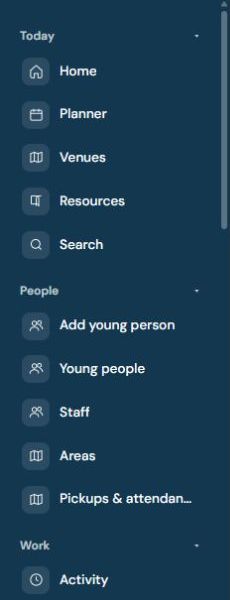
- Daily work: start on Home, check the date and follow the item that needs you.
- Planning: use the calendar to check when and where something is meant to happen.
- A person's history: find and open their record, then choose the relevant tab.
- Organisation configuration: use the administrator pages. Personal preferences live under Settings.
Understand why Home looks different for different people
Home is adapted to the work your role can do. A delivery view concentrates on today's work and your allocated people. An oversight view includes queues and work needing a decision. Seeing a different layout from a colleague is not necessarily a fault.
If you have more than one role, check which view you are using before reporting a missing section. Changing your view does not itself give you additional permissions.
Search and check identity before editing
- Search using the information you already know. A reference code is useful when names are similar.
- Open the result and check the identity information before adding a note, file or appointment.
- If nothing appears, check spelling and your assigned scope with an authorised colleague.
- Avoid creating a second record just because an existing one is outside your view.
Keep personal and organisation settings separate
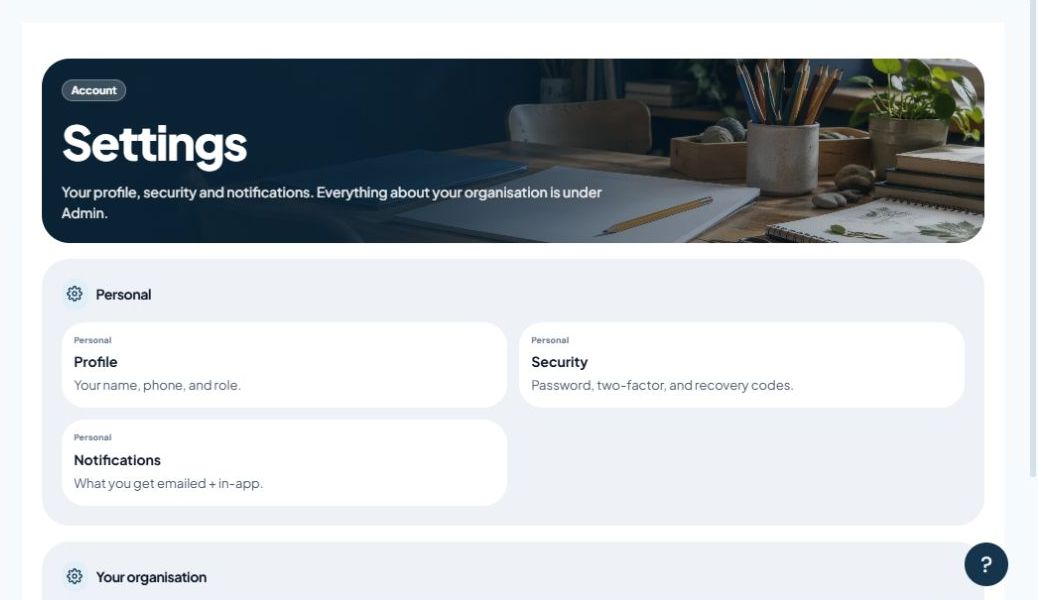
Your profile describes you. Security controls your sign-in. Notification preferences control the messages you can choose. Organisation settings affect other people and should only be changed as part of an authorised task.
Use these guides alongside the app
Each guide starts with a short checklist. The contents list jumps to a detailed explanation, and screenshots can be opened at full size. The print button uses your browser's print dialog, where you can usually save a PDF.
Screenshots are examples of the website on the date shown. Organisation wording can differ, and some features may be switched off. Follow the current page's explanation if it refuses an action.
Describe a problem clearly
- Say which page you opened and what you were trying to do.
- Include the exact error wording and whether it happened before or after saving.
- Say whether the issue affects one record or several, without sending confidential details through ordinary email.
- Do not include passwords, recovery codes or screenshots of children's information in a support message.