For anyone with an account. Use the invitation and website address supplied by your organisation.
Steps
- Open your organisation's sign-in page.
- Enter your Email address and Password.
- Press Sign in and complete any additional sign-in check shown.
- If you have forgotten the password, choose Forgot your password?.
- Once signed in, open Settings, then Security.
- Use Change password when you need to replace your password.
If it goes wrong
- If the invitation has expired, ask the administrator who invited you to resend it.
- If you cannot complete two-step sign-in, use a recovery option offered on the page or contact your administrator. Do not share codes.
Before your first sign-in
An invitation is for a particular email address. Use that address even if you normally read email through an alias. Follow the invitation to finish setting up your account, then return to the organisation's website.
If your organisation created an account with a starter password, receive that password through the agreed secure route. Replace a shared starter password promptly. Never use a colleague's account to get around an access problem.
Password or access problem?
- A forgotten password means you need the password-reset route.
- An expired invitation needs a new invitation from the administrator.
- A page that opens but refuses access usually needs a role or assignment checked.
- A two-step challenge needs your authenticator or an offered recovery method; your password alone may not complete sign-in.
Recover a forgotten password
Choose the password-reset link from the sign-in form and enter the account's email address. Check your inbox and junk folder. Follow the newest reset message, because an older link may no longer work.
If no message arrives, check the address with your administrator rather than repeatedly creating accounts. Do not forward password-reset links to support: anyone with the link may be able to use it.
Find your security controls
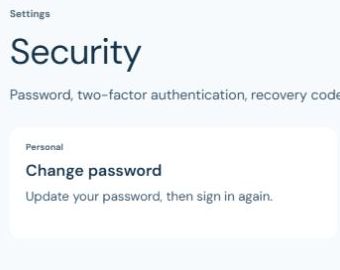
The password card explains that changing it requires you to sign in again. Finish or safely save ongoing work first. The authentication card shows whether an authenticator is enrolled, or whether its status could not be loaded.
Set up two-step sign-in carefully
If your organisation asks you to enrol, follow the on-screen steps using your own authenticator app. Complete the verification step; seeing a setup code alone does not prove enrolment is finished.
Keep recovery codes in a secure place you can reach if the authenticator is lost. Do not store them in a child's record, ordinary help request or shared screenshot. When replacing codes, follow the page's instructions about which set remains valid.
When a page signs you out
An inactivity sign-out is a security measure. Sign back in before continuing. If you were writing, return to the same record and check for saved work or a restore prompt before starting again.
Do not assume that a page left open on screen is still connected. A save can fail after the sign-in has expired. Read the saving message and verify your work is present after returning.
Before leaving a shared device
- Finish saving and check the confirmation.
- Sign out using the account menu.
- Do not allow a shared browser to remember your password.
- Keep any exported files in your organisation's approved storage and follow its shared-device procedure.