For your own account. Routine preferences do not remove mandatory notices or replace checking the app.
Steps
- Open Settings, then Notifications.
- Find the event you want to change.
- Choose Each time, Hourly round-up, Daily round-up (7am) or Off where a choice is offered.
- Check the in-platform choice separately from the email choice.
- Read any organisation-level notice above the list.
- Check the result of your change before leaving the page.
If it goes wrong
- If an event says it is always on, it cannot be disabled here.
- If email is switched off for the organisation, changing your own preference does not switch it on for everyone.
Read a row from left to right
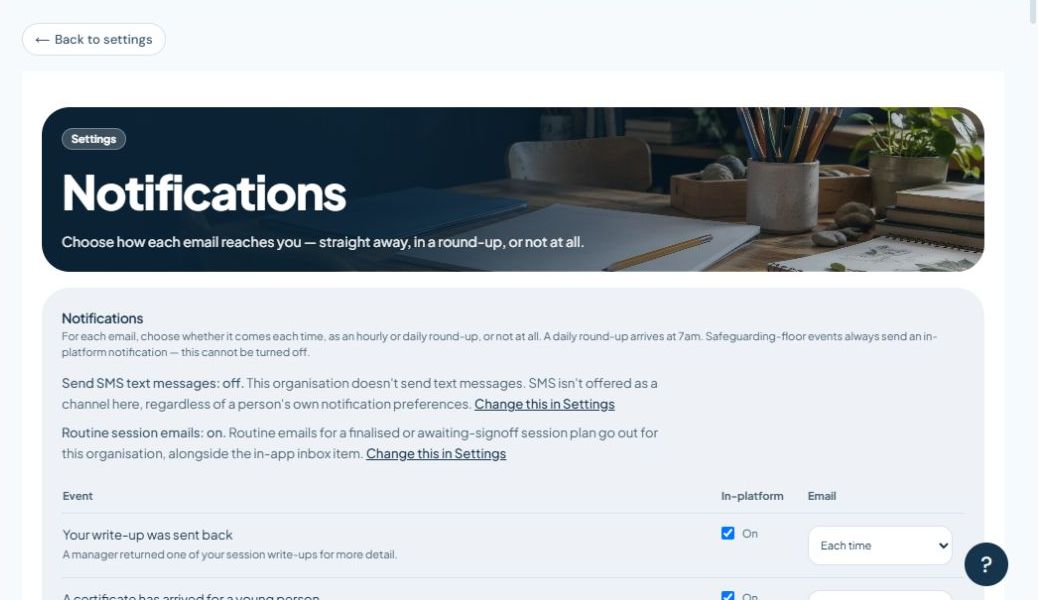
The event description tells you what causes a message. The in-platform column controls eligible items in the app's inbox. The email column controls how eligible messages are delivered to your email account. Changing one does not necessarily change the other.
Choose a delivery frequency
- Each time: choose this for a routine event you want to receive individually.
- Hourly round-up: collect eligible events into an hourly email instead of separate emails.
- Daily round-up: collect eligible events into the daily email shown on the page, currently labelled 7am.
- Off: stop optional emails of that type. It does not close the work that generated them.
A round-up is useful for information that can wait. Before changing a time-sensitive event, consider how you will otherwise notice it. The app remains the place to check the current record and outstanding work.
Understand mandatory notices
Some safeguarding and delivery-failure notices say they are always on. Those controls are deliberately unavailable. You cannot use a routine email preference to silence a compulsory notice.
An email preference is not proof that a concern has reached its owner. For urgent action, follow your organisation's direct contact procedure and check the record's status.
Read organisation-level notices
The top of the page can explain that a channel or routine email feature is unavailable for the organisation. Personal settings do not override that choice. Ask the administrator responsible for communications if the service needs it changed.
Do not enable an organisation feature just to test an individual preference. That can affect other staff and start real messages.
Oversight summaries and calendar subscriptions
Eligible users can also see summary-email controls and a calendar option for follow-ups they own. These are separate from the event-by-event list. Read the explanation before enabling either.
A subscribed calendar may refresh later than the app. Use the app to confirm current responsibilities and deadlines. Treat a calendar subscription link as private; do not paste it into a public calendar or support request.
Troubleshoot a missing email
- Check the event's email frequency and whether a round-up is expected later.
- Check spam or junk and the address on your account.
- Read any notice about the organisation's email settings.
- Check whether the underlying action succeeded in the app. A saved action and a delivered email are different results.
- Report repeated delivery problems with the event type and approximate time, without forwarding confidential content.