Open Staff training to see requirements, evidence waiting for review, approaching renewals and overdue learning. Managers and admins can monitor and assign training. Only admins maintain the catalogue and import history.
Steps
- Use Overview for compliance. Select a figure to open its records.
- Use By employee for one person's learning, or By course for course coverage.
- Open Manage training and Set required training. Select employees, courses and their deadline. Check the requirement total, then save.
- Open an employee, enter completed learning and choose Save completion. A manual submission waits for an independent review.
- Inspect pending evidence. Choose Verify completion, or Return for correction with a clear reason.
- Admins use Create a course for audience, named employees, deadline, renewal and evidence rules. Use Create new version for a change, or Archive course after active work is resolved.
- Admins use Manage categories to Create category or rename one with Save changes. Move active courses before Archive, Restore when needed, or Delete unused when never used.
- Admins use Import records, check every preview issue, then choose Import reviewed rows. Existing decisions are not silently replaced.
If it goes wrong
- Not assessed means no requirement is assigned. It is not the same as fully compliant.
- A pending renewal may appear beside an older verified completion. The older record remains valid until its expiry or version rule says otherwise.
- If everyone appears to need an optional course, inspect the course audience before changing individual records.
- Do not use staff training to record learning delivered to young people. Staff compliance and young people's education records are separate.
- If a save or import reports that it may not have completed, reload and inspect the record before trying again.
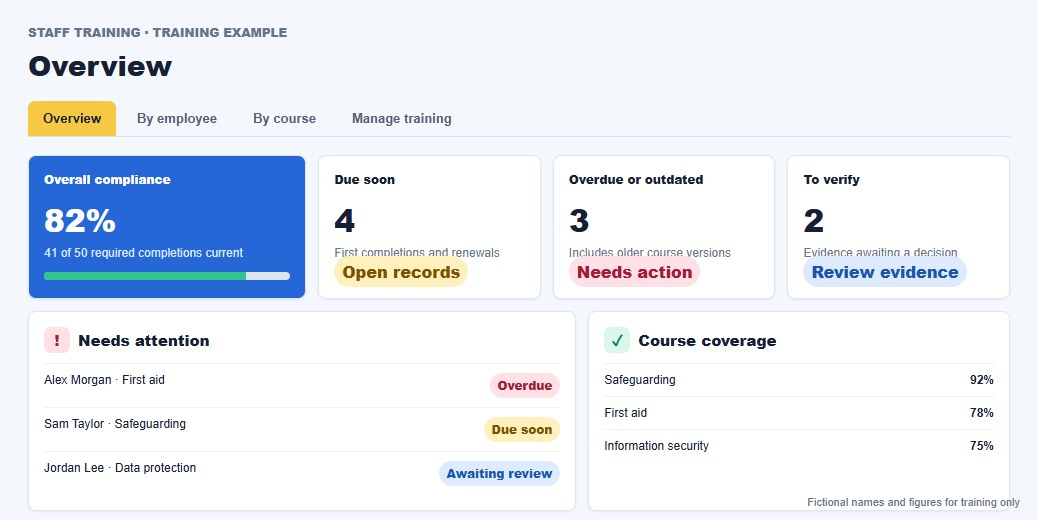
How compliance is calculated
Compliance uses required learning only. Current verified completions count as compliant. Missing, expired, overdue, superseded-version and awaiting-review requirements remain outstanding. Optional courses do not create gaps unless they are assigned to a person.
A first deadline is based on when both the course and employee record existed, unless a manager sets an explicit date. Editing a course description does not move that deadline.
Roles and access
- Employees can see their own assigned learning and history where their record is linked to their account.
- Managers and admins can view the matrix, assign requirements, record completions and check evidence.
- Admins alone can maintain categories, create, version or archive courses, set named course audiences and import a workbook.
- All training data is limited to the signed-in organisation. Catalogue, assignment, completion, review and import changes are audited.
Evidence, renewals and versions
A renewal period calculates an expiry date from the completion date. Due-soon and overdue views include first completions as well as renewals, so upcoming work is visible before compliance is lost.
Where evidence is mandatory, an imported or manually recorded completion remains pending until another authorised person verifies it. Returning evidence never deletes the submission or its correction reason.
Course versions preserve what the rule was at the time. Requiring the latest version is a deliberate compliance decision; leave it off when wording or administration changed but existing learning is still valid.
Audience and exceptions
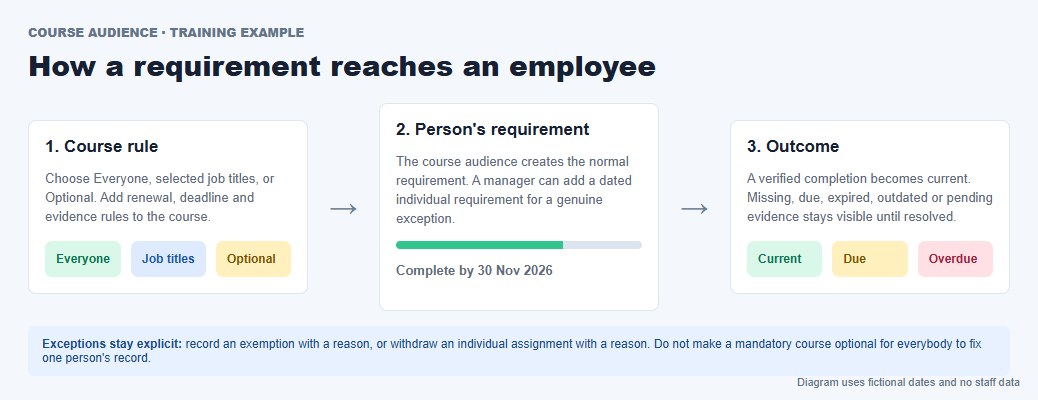
Everyone creates a requirement for every active employee. Selected job titles create requirements only where the staff record matches one of those titles. Optional leaves the course available without turning every missing completion into a gap. Named employees adds specific people alongside any broad audience rule.
Use Named employees while editing a course when the named group is part of that course's normal audience. Use an individual requirement for a one-off exception, such as somebody temporarily covering another role. If a person is not required to complete an otherwise mandatory course, record an exemption and its reason. Do not weaken the course audience for everybody to solve one exception.
Save a named audience separately from a new course version. You can set its shared deadline. Removing somebody requires a reason and withdraws only the named-audience requirement; one-off assignments and broader everyone or job-title rules remain intact. Use an exemption for a genuine exception.
Workbook reconciliation
The workbook preview separates matched requirements, completions, exemptions, new courses, unresolved names and date problems. Rows with an unknown or ambiguous person are not guessed. Correct the workbook or the staff roster, then preview again.
Applying the preview is one database transaction. If any accepted row fails, the whole batch rolls back. The batch summary records unresolved outcomes and conflicts, so a partly reconciled import cannot be mistaken for a complete migration.